
The Audio trimmer lets you put several pieces of music on a timeline, join and cut them, and make a new piece of audio.
Open the audio trimmer
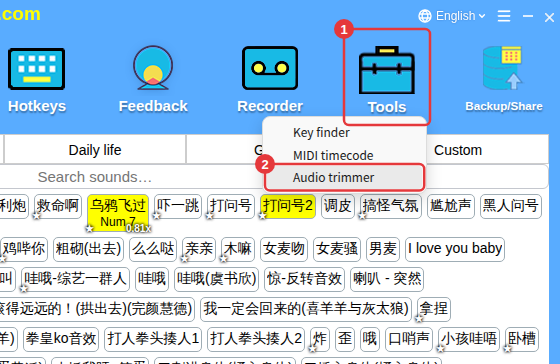
Click Tools on the toolbar → Audio trimmer (or ≡ in the top-right corner → Audio trimmer).
Slow the first time?The audio trimmer needs Microsoft Edge WebView2. Windows 10/11 installs it automatically from Microsoft, and Windows 7/8 downloads a compatible version automatically — stay online and wait for it to finish.
Add music
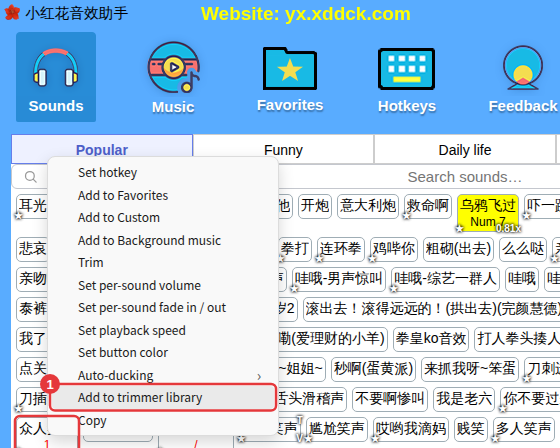
- Right-click a sound and choose Add to trimmer library.
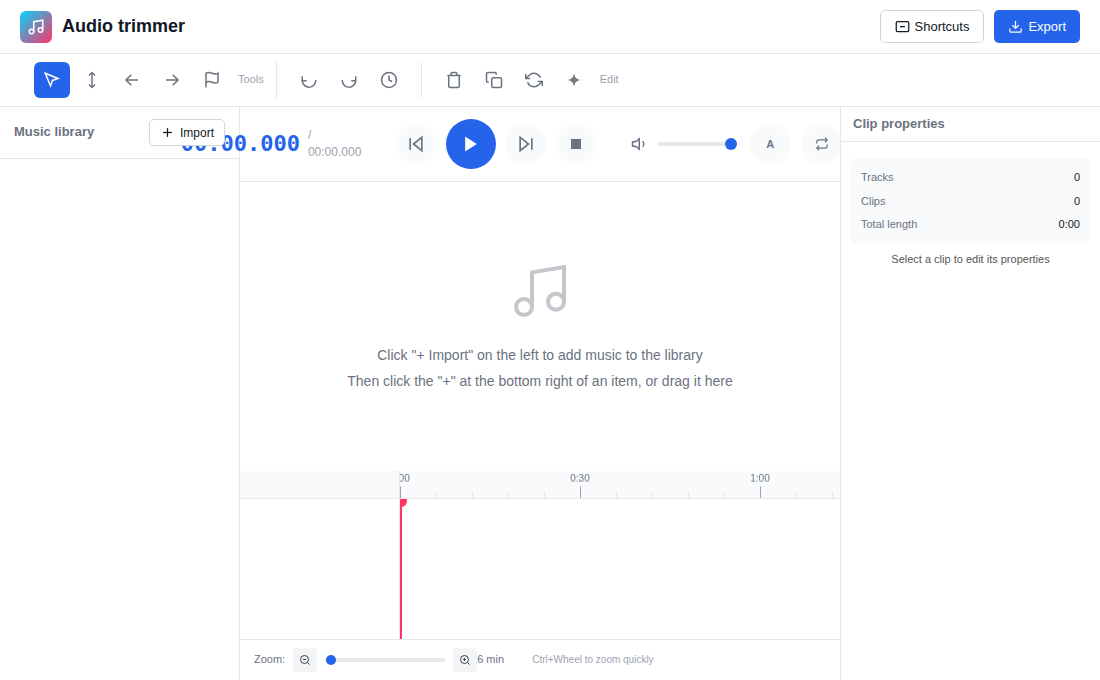
- Or click + Import in the Music library on the left of the trimmer.
Edit and export
- Drag music from the library onto the timeline in the middle (or click + at the bottom-right of a piece).
- Move and resize clips on the timeline; hold Ctrl and scroll the mouse wheel to zoom quickly.
- Select a clip to adjust it under Clip properties on the right. When you’re done, click Export at the top, choose to export to Custom sounds or to Background music, and give it a name — the finished audio becomes a sound button there.
Won’t open?See Audio trimmer won’t open.
