
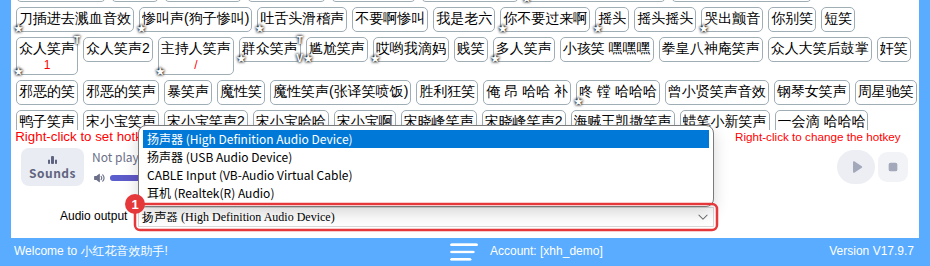
First switch to another device under Audio output at the bottom of the main window and test a sound, then check the player volume, the sound’s own volume and any player using exclusive mode.
You can hear it but viewers can’t?Your streaming software isn’t capturing the sound — see Viewers can’t hear sounds.
No sound at all, quieter sound, or the progress bar doesn’t move
- Switch the audio output: try the devices under Audio output one by one until you hear sound. See Set the audio output.
- Check the volume: is the volume slider on the left of the Sounds row in the player turned right down? For sounds with their own volume, check that too (see Set per-sound volume).
- Check exclusive mode: some music players set their output to WASAPI exclusive mode, which silences other apps — switch it to shared mode or close the player and try again.

Sounds play when clicked but not with hotkeys
Security software such as 360 may be blocking hotkeys — turn it off and try again — or Hotkeys isn’t ticked. See Hotkeys not working, accidental triggers, conflicts.
Your imported sounds are silent but built-in sounds work
After moving to a new PC or reinstalling Windows, the music files you imported may no longer be there. Import a local sound pack exported on the old PC, or import the files again. See Restore sounds and settings on a new PC.
Still no sound
If you use the PC’s built-in sound card, consider an external one; if you already use an external sound card, ask the seller or your audio engineer to check its settings.
