Custom, Background music, Favorites and Hotkeys can each have several subcategories. Once you have lots of sounds, grouping them by purpose makes them easier to find on stream.
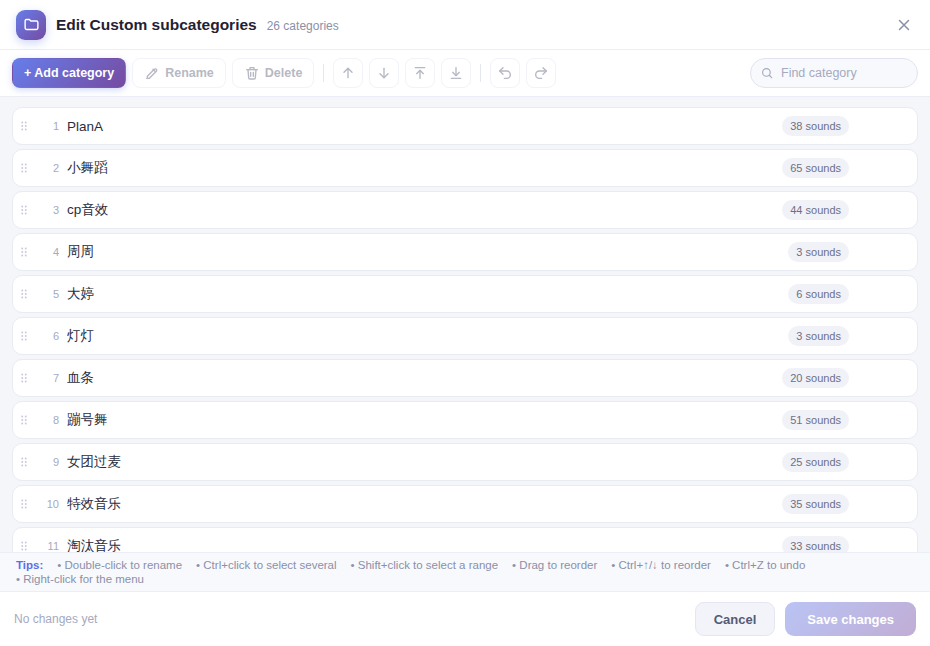
Edit categories
- Click Edit categories at the start of the subcategory tabs.
- In the window that opens you can + Add category, Rename and Delete, and drag categories to reorder them.
- Click Save changes to apply; click Cancel to discard this round of changes.
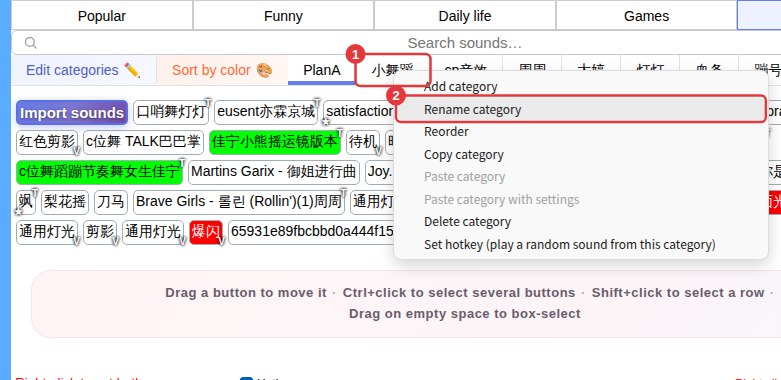
The category tab right-click menu
Right-click a subcategory tab (①) to open its menu (②): Add category, Rename category, Reorder, Copy category, Paste category and Delete category. When copying categories between Custom and Background music you can also Paste category with settings to bring trims, volume and other settings along. Subcategories in Custom and Background music can also get Set hotkey (play a random sound from this category); once set, the menu offers to change or delete that hotkey instead. See Hotkey management and keys in use.
Organize sounds
- Drag: hold a sound button and drag it where you want it.
- Multi-select: Ctrl+click to select several buttons, Shift+click to select a row, or drag on an empty area to box-select. Right-click after selecting and the menu applies to every selected sound.
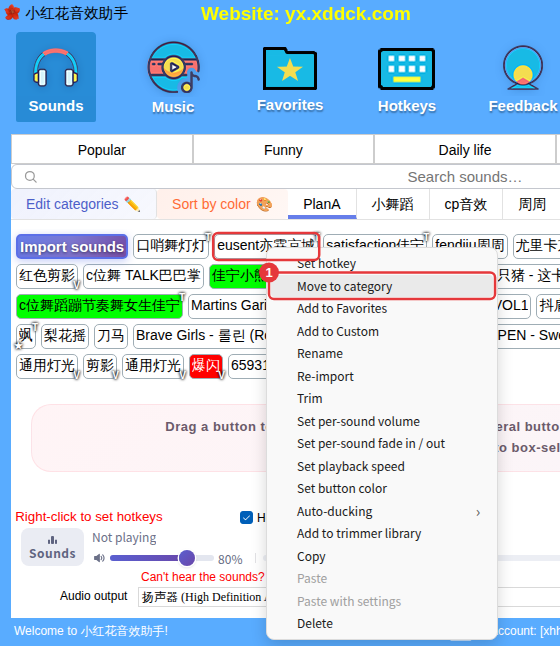
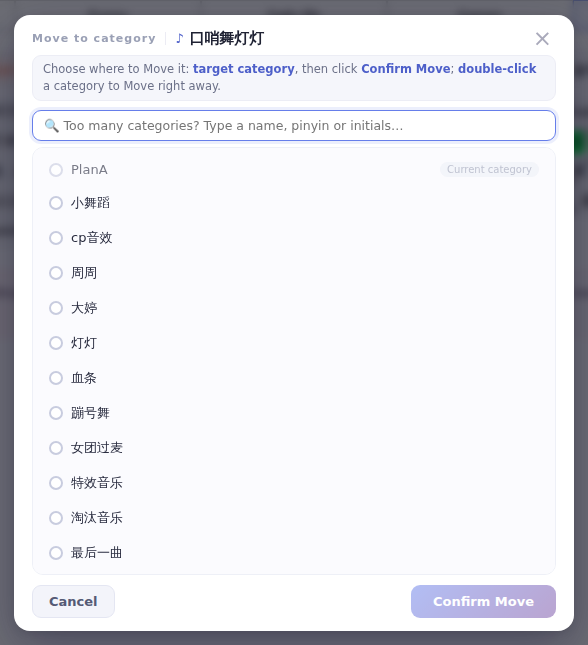
- Move to category: right-click a custom sound → Move to category, click the target category in the window, then Confirm Move (or double-click a category to move right away).
Put built-in sounds in your own categories
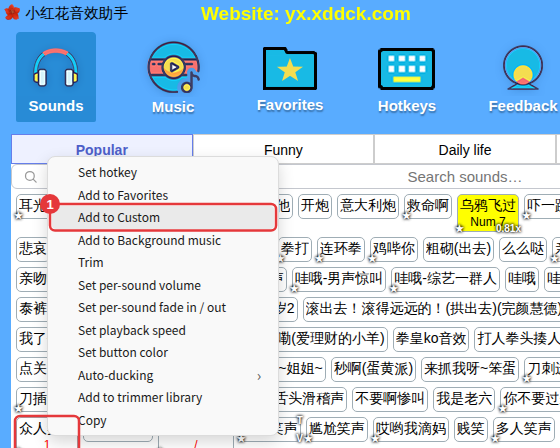
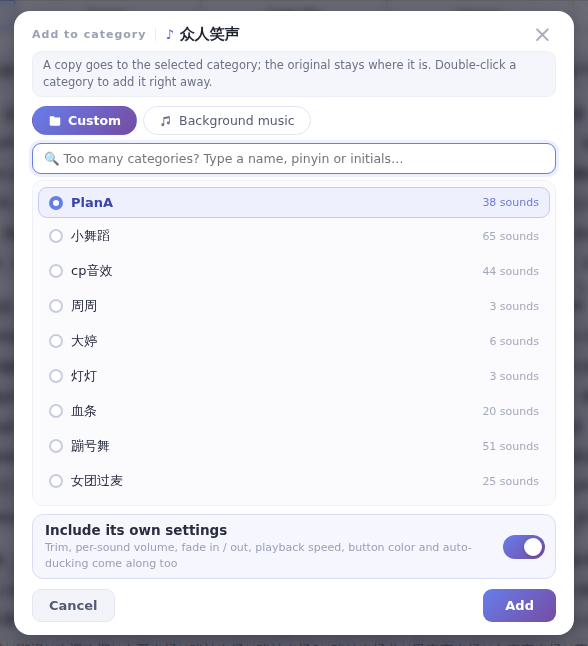
Right-click a built-in sound and choose Add to Custom or Add to Background music. A copy is added to the subcategory you choose; the original sound stays where it is.