
Every sound can have a hotkey. On stream you don’t need to switch windows — one key press plays it.
Set a hotkey
- Right-click a sound button and choose Set hotkey.
- When the Set hotkey window appears, just press the key you want. Single keys (such as A, 1 or F1) and combinations (such as Ctrl+1 or Alt+A) both work, and so do the middle and side mouse buttons.
- Check that the key shown is right, then click OK.
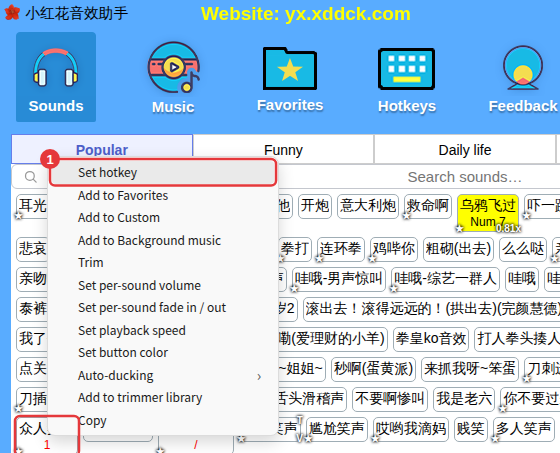
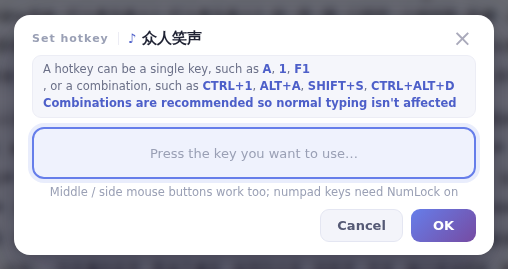
Use key combinationsSingle letter or number keys are easy to trigger by accident while typing; combinations such as Ctrl+1 don’t get in the way. Numpad number keys only work when NumLock is on.
See, change or delete hotkeys
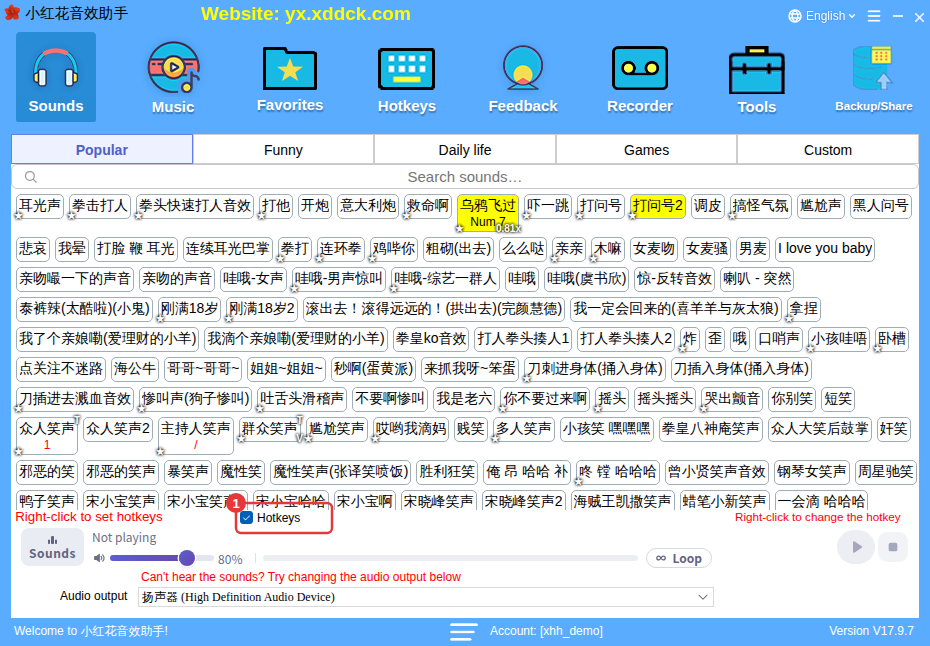
- Once set, the hotkey appears under the sound’s name (you can turn this off in More settings → Show hotkeys under sound names).
- Right-click the sound again to set a new hotkey, or choose Delete hotkey.
- Click Hotkeys on the toolbar to see every sound that has a hotkey. See Hotkey management and keys in use.
Turn off all hotkeys for a while
Worried about triggering sounds while you type in chat? Untick Hotkeys at the top left of the player (①) and every sound hotkey stops working until you tick it again. The floating window has the same switch (see Always on top, floating window and tray), and you can give the hotkeys switch a function hotkey too — see Function hotkeys and volume step.
Hotkeys not working?See Hotkeys not working, accidental triggers, conflicts.
