
Is the window always hidden behind your game or streaming software? Keep it on top — or close the main window and use hotkeys in the background.
Always on top
Click ≡ in the top-right corner → Always on top → On and the main window stays in front of everything; choose Off to go back (off by default).
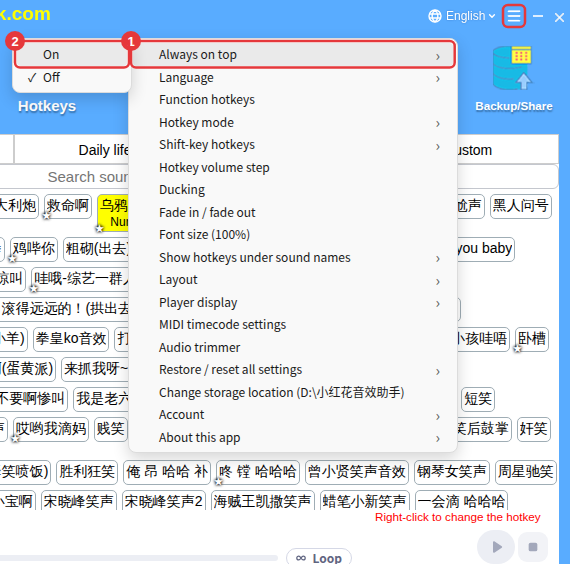
Keep running in the tray after closing
- × in the top-right corner only hides the main window — the app keeps running in the tray at the bottom-right of your screen and your hotkeys still work.
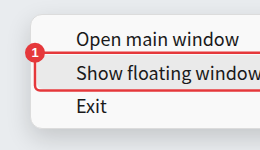
- Double-click the tray icon to open the main window. Right-click it for Open main window, Show / hide floating window, and Exit to quit completely.
Floating window
The floating window is a small window that always shows whether Hotkeys is on or off, without opening the main window:
- Click the switch icon on the floating window to turn all sound hotkeys on or off.
- Double-click the floating window to open the main window.
- Right-click it for the same menu as the tray icon.
To show or hide the floating window, choose Show floating window or Hide floating window from the tray icon’s right-click menu. You can also give show/hide window a function hotkey so one press shows or hides the main window. See Function hotkeys and volume step.
