
Once your sounds have start timecodes, OBS can switch scenes, show or hide sources, or control media sources automatically when playback reaches a given time — so sound and picture move together.
Prepare: turn on OBS WebSocket
OBS 28 and later include a WebSocket server. In OBS, open Tools → WebSocket Server Settings and tick Enable WebSocket server (default port 4455). If you ticked Enable Authentication, click Show Connect Info and copy the server password.
Connect to OBS
- Click Tools on the toolbar → MIDI timecode and switch to the OBS link tab.
- Tick Enable OBS control. The host and port default to this PC and 4455 and usually don’t need changing; if OBS has a password, enter it as the WebSocket password.
- Click Save at the bottom of the window — once it shows Connected, you’re set.
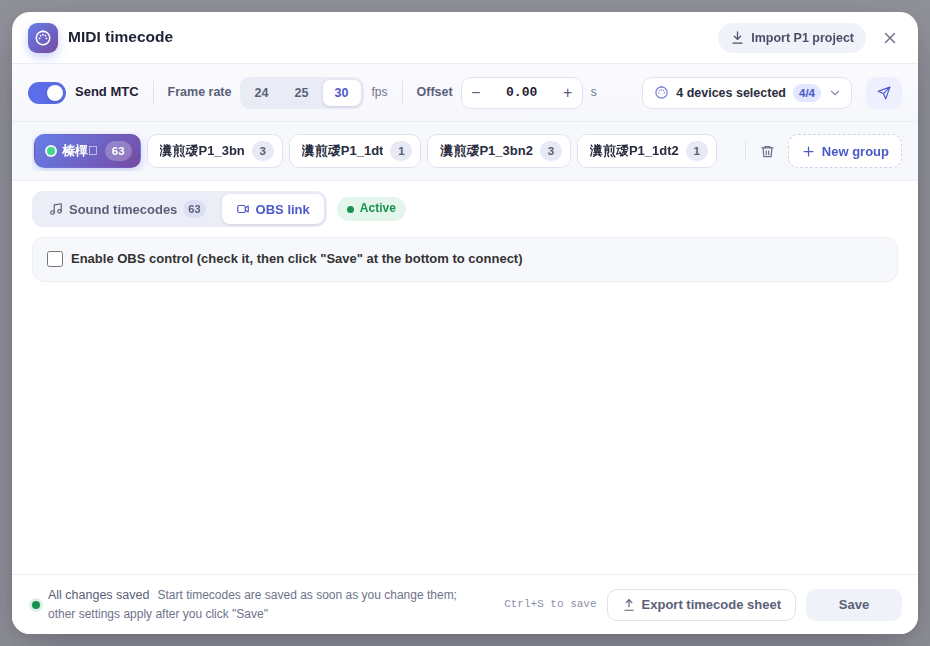
Add cues
- Click + New cue.
- Choose the type — switch scene, show/hide source or media action — then choose the scene, source or media source (once connected to OBS you can pick them from a list).
- Enter the cue timecode (hours, minutes, seconds, frames, at the same frame rate as the sound timecodes) and click Save.
A faster way: in Sound timecodes, right-click a sound and choose to add an OBS cue for it. Its start timecode is filled in for you, so you only need to change the seconds.
What media actions can do
Restart, play, pause, stop, next and previous for a media source or VLC video source in OBS (next and previous are for VLC playlists).
Cue didn’t fire? Check these
- Cues are saved per group, and only the active group’s cues run. For groups, see MIDI timecode.
- Cues only run while a sound with a start timecode is playing, and the cue time must fall within the start–end range of a sound in that group; cues marked ⚠ are never reached during playback and won’t fire.
- Scene, source and media source names must match OBS exactly (including case and spaces).
- After jumping on the progress bar, switching sounds or reconnecting, the scene and each source’s visibility can be caught up automatically; media actions aren’t re-sent and only fire when playback reaches that moment.
- If you only use OBS link, you don’t need to turn on Send MTC.
Just want to switch scenes from the keyboard?Set it up directly in OBS under Settings → Hotkeys. Note that when 小红花音效助手 uses Register mode, OBS no longer receives that key. See Hotkey mode and Shift-key hotkeys.
