
Add the sounds you use most to Favorites and you’ll find them quickly on the Favorites page during a stream, instead of digging through thousands of sounds.
Add to Favorites
- Right-click a sound button and choose Add to Favorites.
- If you have only one favorite category it goes straight in. With several, the Add to Favorites window opens: pick a category (or create a new one), optionally enter a display name, and click Add.
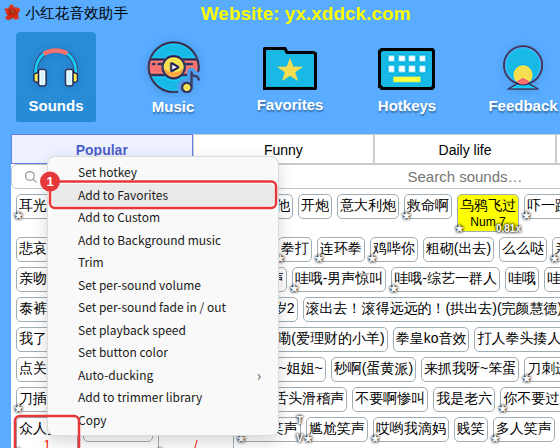
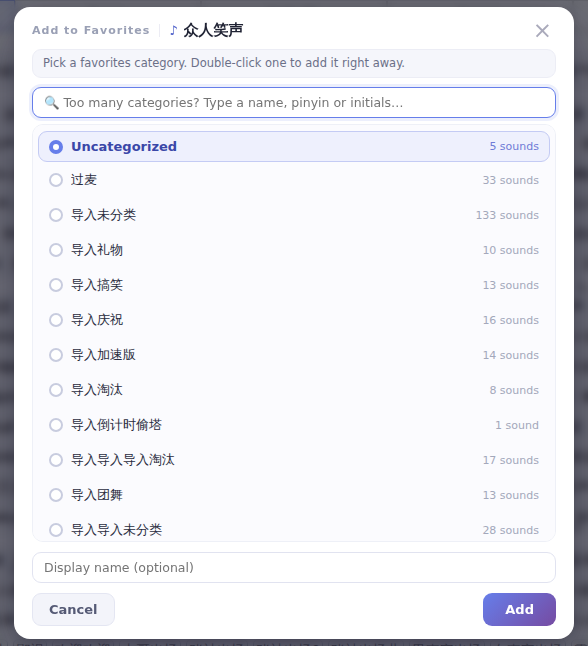
A favorited sound shows a small star on its button.
Using the Favorites page
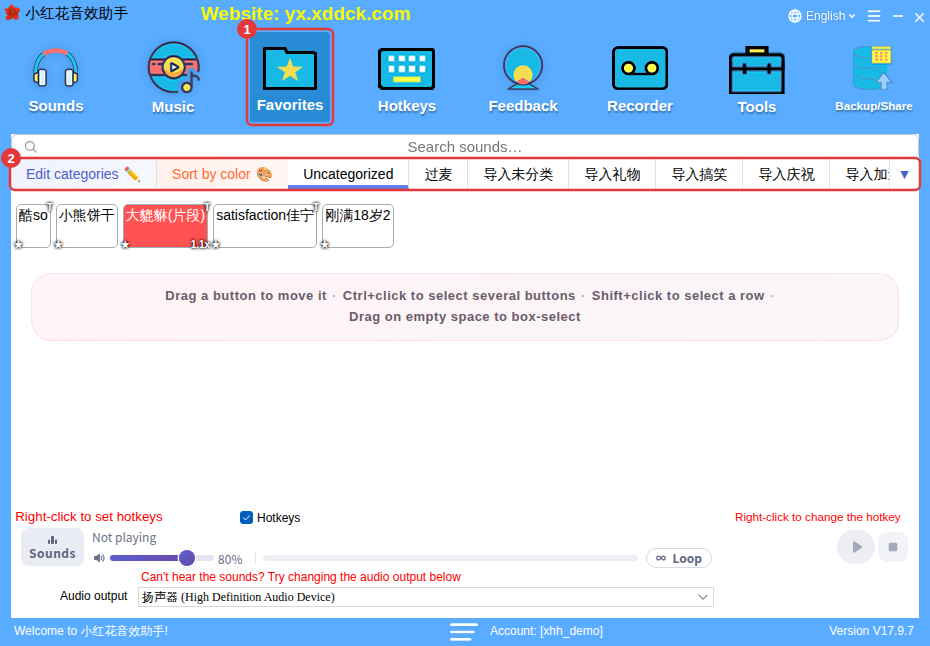
- Click Favorites on the toolbar (①).
- Favorite categories are along the top (②); click one to switch, and click a sound to play it.
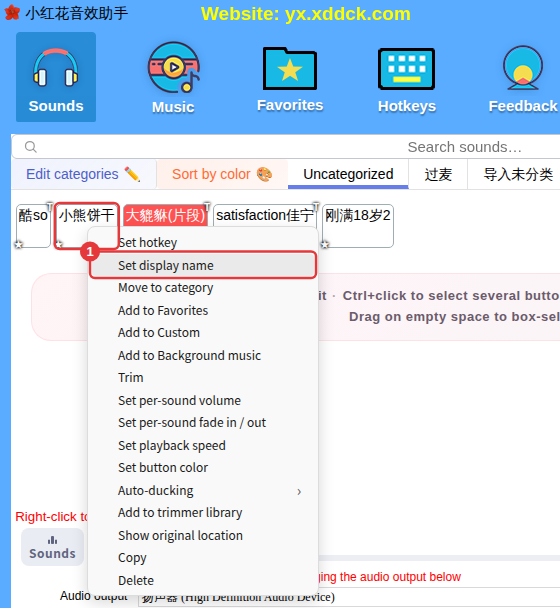
The favorite right-click menu
- Set display name: give the favorite an easy-to-remember name. It only shows in Favorites and doesn’t change the original sound.
- Move to category: move it to another favorite category.
- Show original location: jump to the category the sound originally belongs to.
- Delete: only removes it from Favorites; the original sound isn’t affected.
How do I create favorite categories?Just like on other pages: click Edit categories, or right-click a category tab and choose Add category. See Manage categories and organize sounds.
