
Want to turn a great moment from your stream, or something you said, into a sound? Record it with the Recorder, then add it as a sound.
Start recording
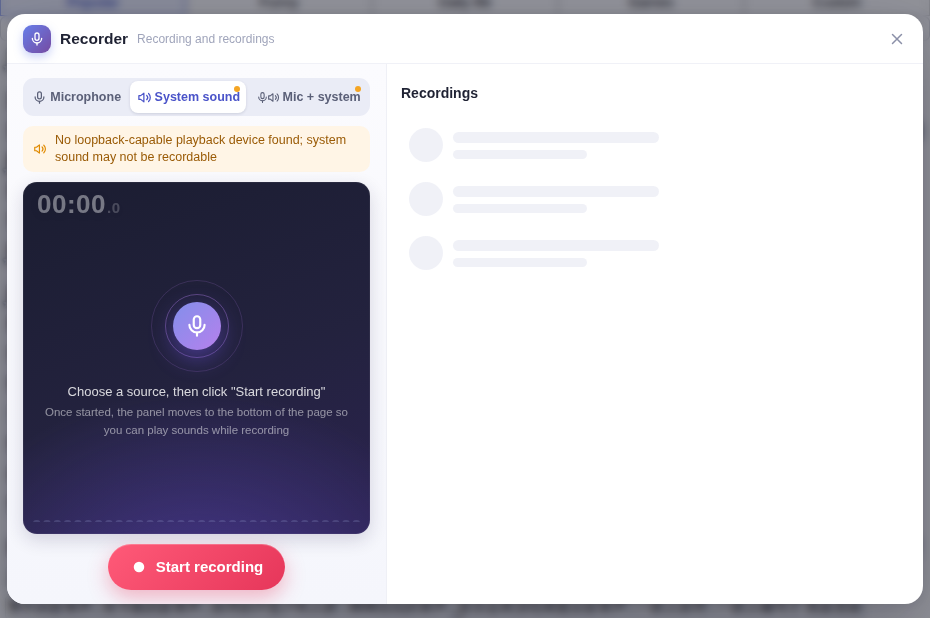
- Click Recorder on the toolbar.
- Choose what to record: Microphone, System sound (whatever your PC is playing) or Mic + system.
- Click Start recording. The panel shrinks to the bottom of the window so you can keep clicking sounds while you record.
- When you’re done, stop and save the recording, give it a name (the default is the date and time), and press Enter to save it to Recordings.
Using recordings
- Click ▶ in Recordings on the right to preview a recording; you can also rename it.
- Add a recording to Custom or Background music and it becomes a normal sound button — you can give it a hotkey, trim it and so on.
- Deleted recordings can’t be recovered, but sounds you already added to a category aren’t affected.
- Closed the recorder without saving? When you open it again you can preview, continue recording or save that last take.
Recorder won’t open?See Recorder won’t open.
