Set lots of hotkeys and can’t remember which key plays which sound? Hotkeys shows them all at once, and also which keys are already taken.
The Hotkeys page
- Click Hotkeys on the toolbar (①).
- Hotkey categories are along the top (②). Each category is a complete, separate set of hotkeys, so switching categories asks you to confirm.
- Below are all the sounds with a hotkey in the current category, with the key under each name. Function hotkeys are set from ≡ in the top-right corner → Function hotkeys (see Function hotkeys and volume step).
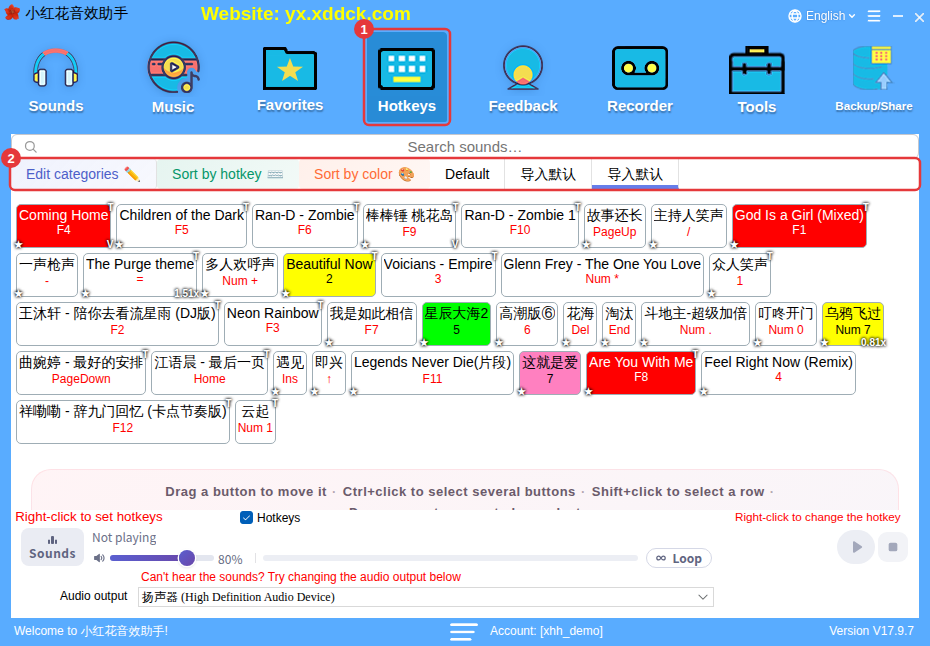
- Right-click a sound in the list to set a new hotkey or delete it, or choose Show original location to find the sound.
- Click Sort by hotkey in front of the category tabs to reorder them in keyboard order.
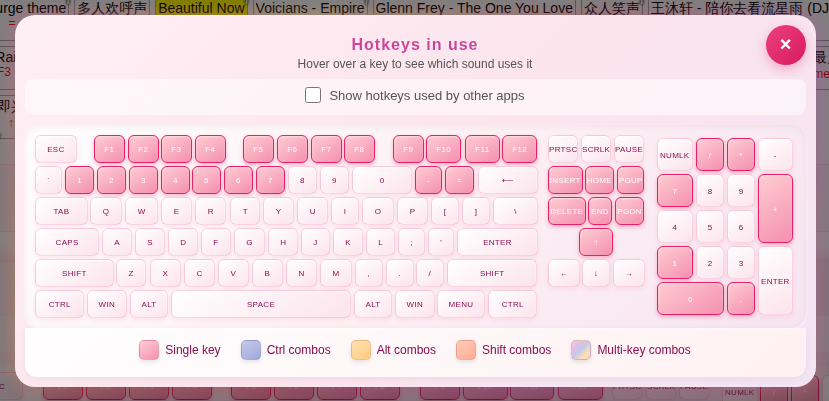
Hotkeys in use
The keyboard at the bottom of the page shows which keys are already used; hover over a key to see which sound uses it. Tick Show hotkeys used by other apps to also see keys taken by other software. Take a look before setting a hotkey to avoid conflicts.
Give a category a random-play hotkey
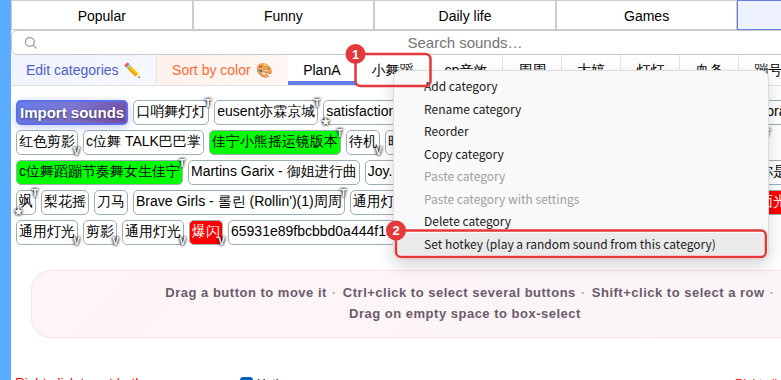
Right-click a subcategory tab in Custom or Background music (①) and choose Set hotkey (play a random sound from this category) (②). From then on, pressing that key plays a random sound from the category — great for cheers, laughs and other sounds that should vary each time.
Categories in Favorites and Hotkeys don’t have this option. To randomly play built-in sounds, first Add to Custom them into the same subcategory, then give that subcategory the hotkey.