
Only want the best few seconds of a song? Pick a part with Trim, and from then on clicking the sound plays only that part (the original file isn’t changed).
Steps
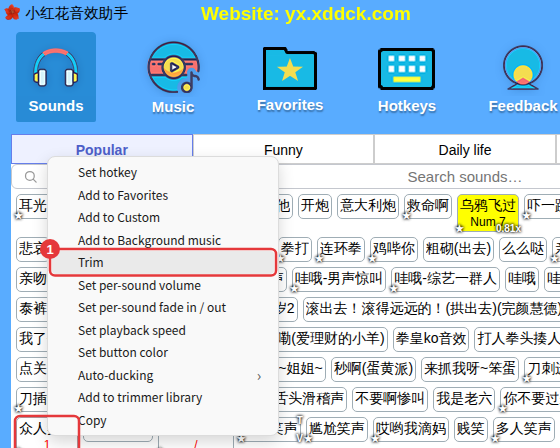
- Right-click a sound and choose Trim.
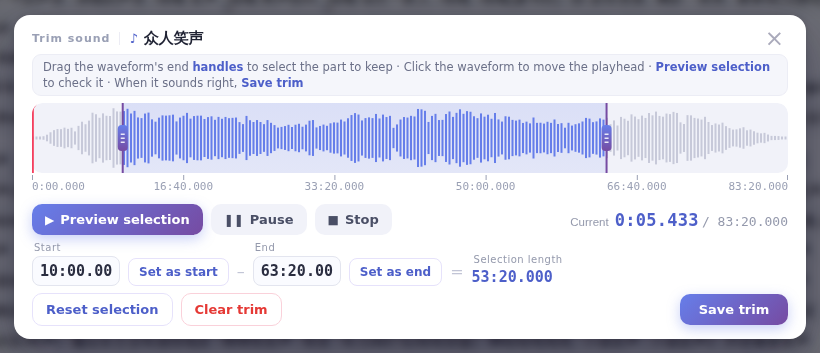
- In the Trim sound window, drag the handles at both ends of the waveform to select the part to keep. Click the waveform to move the playhead there, or use Set as start and Set as end at the current position.
- Click Preview selection to hear it, Play all to hear the whole sound, and Stop to end the preview.
- When you’re happy, click Save trim.
Change or remove a trim
- Open Trim again to choose a different part; Reset selection goes back to the whole sound.
- Don’t want the trim any more? Click Clear trim in the window, or right-click the sound and choose Delete trim.
TipYou can keep only one continuous part. After trimming, the progress bar in the player marks where the part is.
