
Ducking temporarily lowers the background music: while a sound plays, while you talk into the microphone, or when you press a hotkey, the music gets quieter and then comes back afterwards.
Open the settings
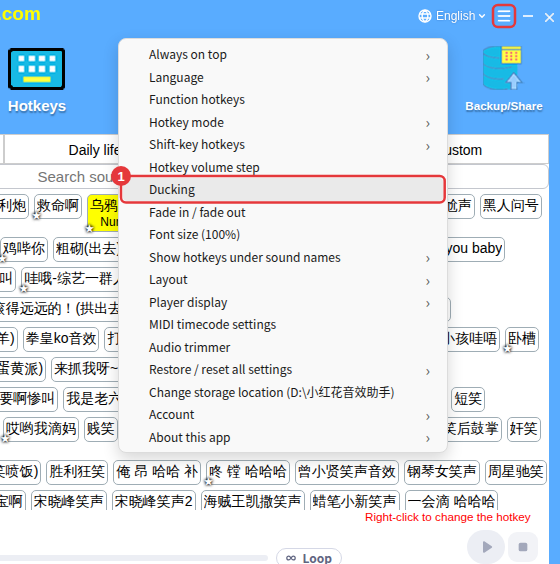
Click ≡ in the top-right corner and choose Ducking.
What each setting does
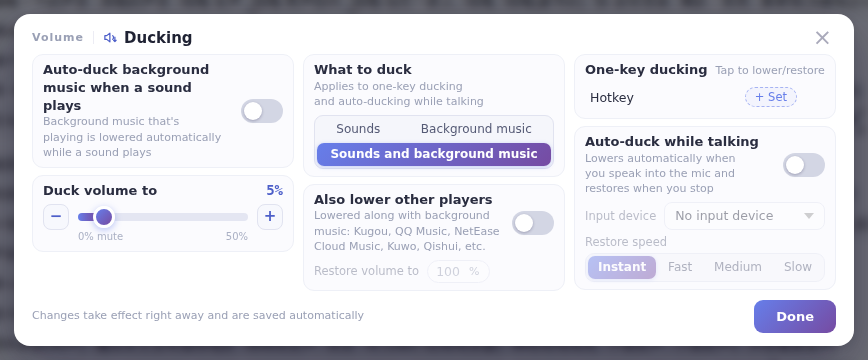
- Auto-duck background music when a sound plays: when on, background music that’s playing is lowered automatically when you click a sound.
- Duck volume to: how far to lower it, from 0% to 50% (default 5%; 0% mutes it).
- What to duck: Sounds, Background music, or Sounds and background music. One-key ducking and ducking while talking follow this choice.
- Also lower other players: when ducking background music, also lower music players such as Kugou, QQ Music, NetEase Cloud Music, Kuwo and Qishui; Restore volume to sets the level they return to afterwards.
- One-key ducking: set a hotkey — press it once before you talk to lower the music, and again afterwards to restore it.
- Auto-duck while talking: choose your microphone (input device); the music is lowered while you speak and comes back at the chosen restore speed (instant, fast, medium, slow) when you stop.
Want just one sound not to duck?See Turn off ducking for one sound. While ducking is active, a small ducking tag appears next to the name in the player.
