
If you use Hirender P1 for show sync, you can import a P1 project file (*.hia) directly: the sounds come over together with their start timecodes, trims, volume and hotkeys.
What is Hirender P1
Hirender P1 is a professional media player widely used at shows and live events; its audio mode can send MIDI timecode. The MIDI timecode feature in 小红花音效助手 works in a similar way, so it can import P1 projects directly.
Import steps
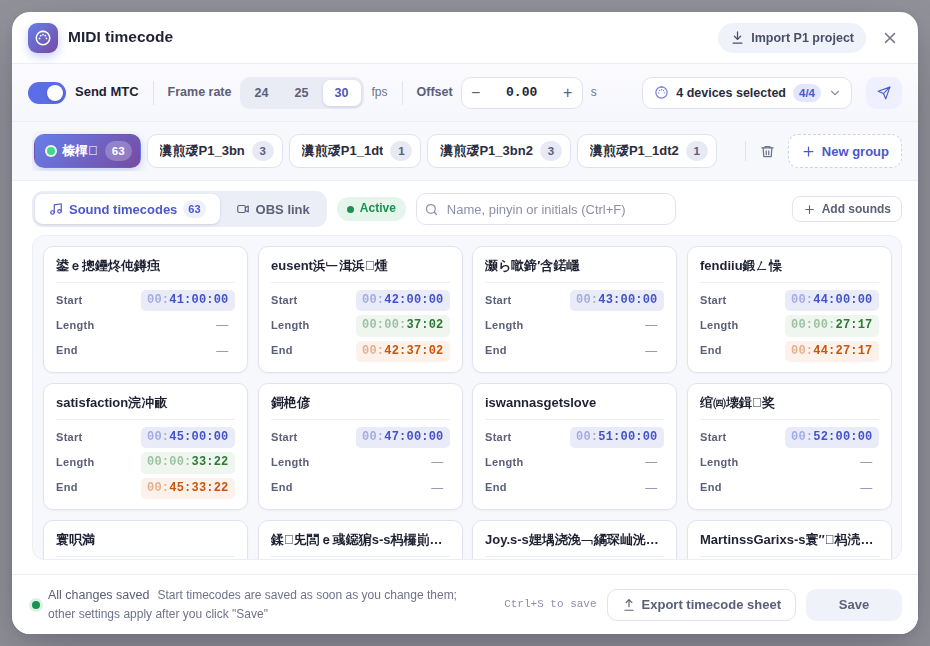
- Click Tools on the toolbar → MIDI timecode, then Import P1 project in the top-right corner of the window.
- Choose where the imported sounds go: custom sounds (a new custom sound category) or background music (a new background music category).
- Choose the P1 project file (*.hia) and wait for the import to finish.
What gets imported
- The project’s sounds, placed in a new custom sound or background music category.
- Each sound’s start timecode, trim, volume and hotkey.
- A new MIDI group (its name starts with the P1 import prefix) holding these sounds’ timecodes.
Check afterwards
- To play by the imported timecodes, right-click the new group, make it the active group, and click Save.
- Make sure the frame rate matches your lighting console and the original P1 settings, then click Test send to check the devices receive the timecode.
NoteIf the window has unsaved changes, you’ll be warned that importing reloads the settings and unsaved changes will be lost. Start times you set individually are already saved and aren’t affected. While importing, the window shows that it’s processing — please wait.
For other MIDI timecode settings, see MIDI timecode (MTC).
