
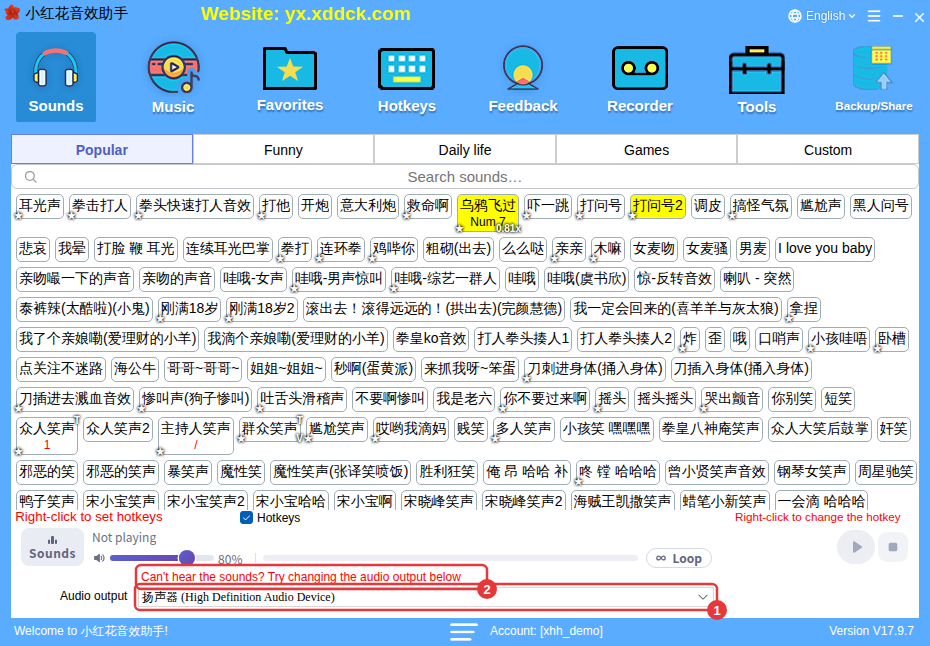
If you can hear sounds but viewers can’t, your streaming software isn’t capturing them. Make it capture the same device that’s chosen under Audio output in 小红花音效助手.
Why this happens
小红花音效助手 only sends sound to the device chosen under Audio output, and your streaming software only sends viewers the audio from the devices it captures. Viewers hear the sounds only when both point at the same device.
Streaming with OBS
- In OBS, open Settings → Audio and set Desktop Audio under Global Audio Devices to the same device as Audio output in 小红花音效助手. Using the PC’s default speakers on both sides also works.
- If Desktop Audio has to stay on another device, add an Audio Output Capture source and choose the same device there.
- Click a sound — if the meter moves in the OBS mixer, it’s being captured.
Streaming with Douyin, Kuaishou, Bilibili and other platform apps
In your streaming app’s sound or audio settings (for example the Douyin or Kuaishou streaming companion, or Bilibili’s streaming app), turn on the option that captures PC audio (it has different names in different apps and versions, such as PC sound, system sound, speakers or desktop audio) and choose the same device as Audio output in 小红花音效助手. Then click a sound and watch whether the meter moves in the streaming app.
With an external sound card
Choose the sound card’s output device under Audio output, then follow the sound card’s instructions to send the PC’s audio into the stream (the same goes for phone streaming). See Which external sound cards work?
Viewers hear it twice or there’s an echo
- The same audio is captured twice — for example OBS’s Desktop Audio and an Audio Output Capture use the same device, or two PC-audio options are on in the streaming app. Keep only one.
- When playing through speakers, the microphone picks the speakers up again — wear headphones instead.
The opposite: viewers hear it but you don’t
The sounds go to a device you aren’t listening to (such as a virtual audio cable or a sound card’s stream channel). Plug your headphones into that device, or turn on monitoring in your streaming software: in OBS, under Edit → Advanced Audio Properties, set the source’s audio monitoring to Monitor and Output.
