
Background music is separate from sounds: you can play background music and click sounds at the same time, and each has its own volume and controls.
Add background music
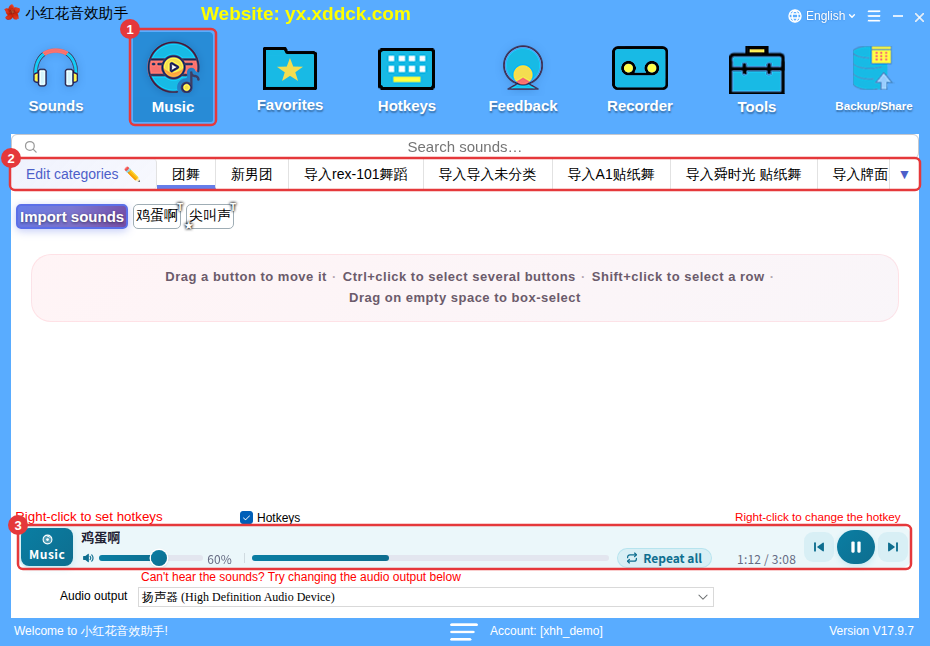
- Click Music on the toolbar (①) and choose a subcategory at the top (②).
- Just like custom sounds, click the Import sounds button to choose songs (several at once is fine), or drag files into the window.
- Click a song to play it; a Music row appears in the player (③).
No songs of your own?Background music is empty by default. You can also right-click a built-in sound and choose Add to Background music. See Can background music only be imported?
Control background music

- ①: previous, play/pause and next.
- ②: play order — each click switches to the next: Repeat all → Shuffle → Repeat one → Play once.
- ③: music volume, set separately from the sound volume.
Auto-ducking
Want the music to get quieter automatically while a sound plays so the sound is clearer? Turn on ducking for sounds in Ducking. See Ducking.
