
Start by getting to know the main window — every button mentioned in the other tutorials is here.
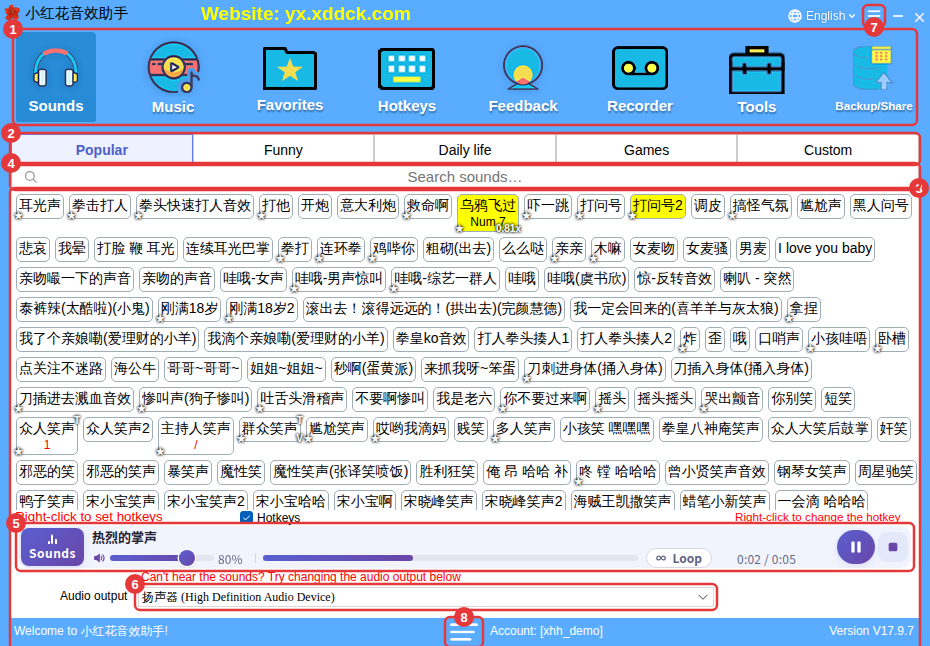
| No. | Name | What it’s for |
|---|---|---|
| ① | Toolbar | Eight buttons — Sounds, Music, Favorites, Hotkeys, Feedback, Recorder, Tools and Backup/Share. Click one to open that feature. |
| ② | Category tabs | Built-in sounds are grouped into Popular, Funny, Daily life and Games; sounds you import yourself are under Custom. |
| ③ | Search box | Find sounds by typing Chinese characters, pinyin or initials. See Search sounds. |
| ④ | Sound buttons | Left-click to play; right-click for the menu (set hotkey, trim, volume, speed and more). |
| ⑤ | Player | Shows the sound and music that are playing; pause, stop, loop and change volume here. See Play, pause and stop. |
| ⑥ | Audio output | Choose which device the sound comes out of — change this when viewers can’t hear your sounds. See Set the audio output. |
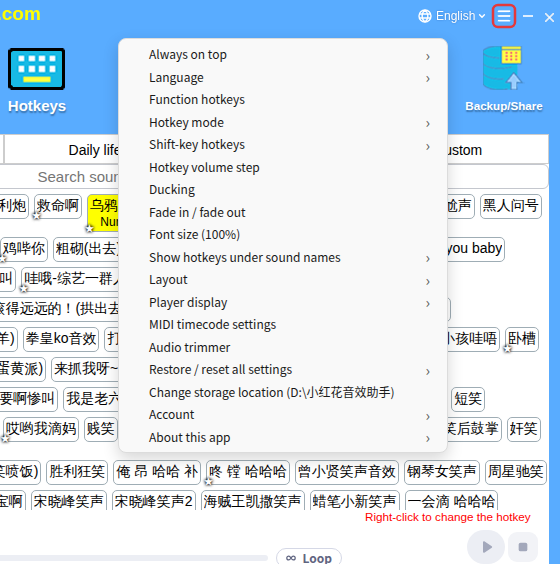
| ⑦ | ≡ (top right) | Opens the More settings menu — almost every setting is here. |
| ⑧ | ≡ (bottom) | The account menu: Link or change email, Change password. |
The More settings menu
Click ≡ in the top-right corner to open the More settings menu. The picture below shows every item; each one is explained in its own tutorial.
Title bar and status bar
- The scrolling yellow text in the middle of the title bar is the app’s announcement. The language drop-down on the right (showing English) changes the interface language (see Change the interface language).
- × in the top-right corner only hides the window — the app keeps running in the tray at the bottom-right of your screen and your hotkeys still work. To quit completely, right-click the tray icon and choose Exit (see Always on top, floating window and tray).
- The bottom line shows the account you’re signed in with and the version number.
