
A feature for live shows and professional streaming setups: send MIDI timecode (MTC) while a sound plays so lighting consoles and other devices stay in sync — and drive OBS too. Most users can skip this.
Open MIDI timecode
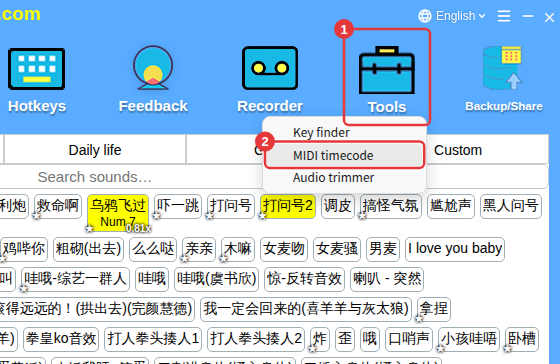
Click Tools on the toolbar → MIDI timecode (or ≡ in the top-right corner → MIDI timecode settings). It’s a separate window you can move aside or onto a second screen; pin it to keep it in front. While it’s open you can still click sounds and set start times in the main window.
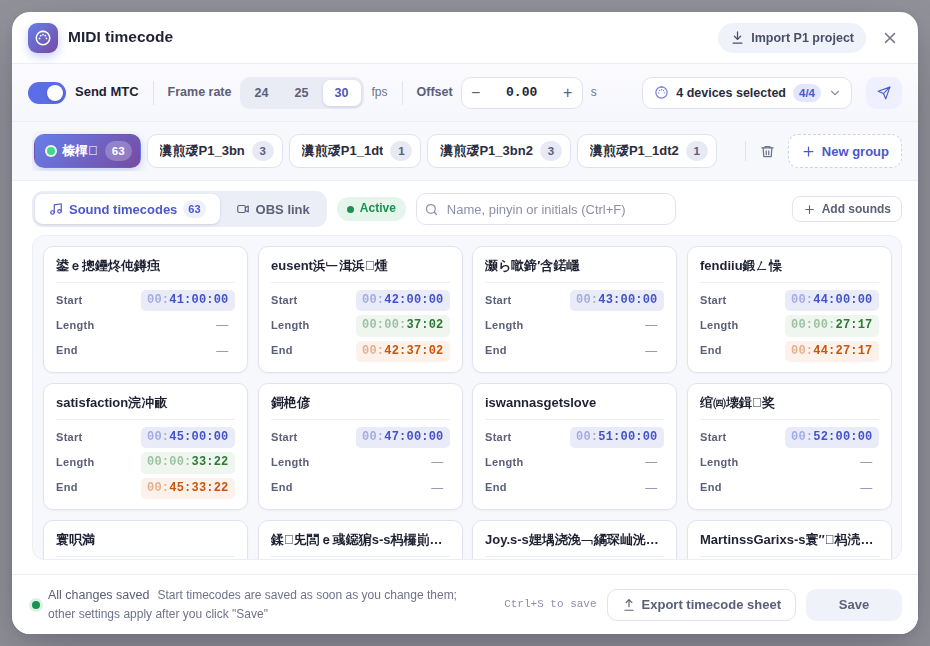
Groups and the active group
Groups are like the parts of a show (for example Act 1 and Act 2). Each group has its own set of start timecodes for sounds; when a sound plays, only the active group’s timecode is sent.
- Click New group to add one; double-click a group name to rename it, and drag to reorder.
- Right-click a group to make it the active group or delete it; click Save to apply.
Give a sound a start timecode
- Right-click a sound and choose the MIDI start-time item to set its MTC start time.
- Enter hours, minutes, seconds and frames (↑ ↓ change the value, hold Shift to change it by 10, Enter to confirm). It’s saved right away and the sound joins the active group.
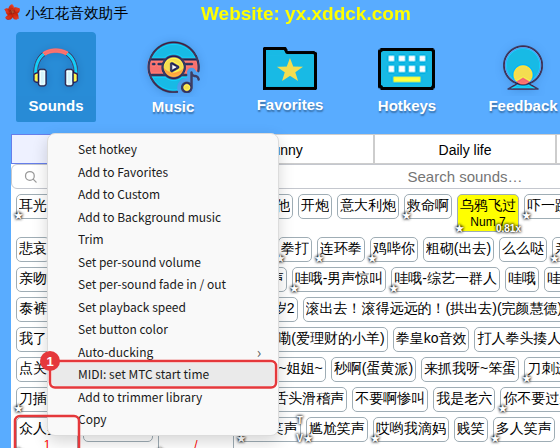
Once set, the right-click menu offers to change the start time or delete it. In the window’s Sound timecodes list: click to preview, double-click to change the time, and right-click to copy, move to another group, or locate the sound on the sounds page.
Sending settings
- Turn on Send MTC.
- Choose the frame rate — 24, 25 or 30 fps — to match your lighting console. Changing it converts every timecode (including OBS cues) automatically.
- Set an Offset if needed: a positive value sends the timecode early (to make up for a downstream device’s delay), a negative one sends it late, within ±5 seconds.
- Click the output device selector and tick the devices that should receive the timecode (several are fine, such as a virtual MIDI port like loopMIDI Port or your MIDI interface); click Refresh after plugging in a new device.
- Click Test send to send one full timecode frame to the ticked devices and confirm they receive it.
- Click Save (or press Ctrl+S).
When a sound with a start time plays, the timecode starts from that point and the bottom of the main window shows that MIDI timecode is being sent.
Export a timecode sheet
Click Export timecode sheet at the bottom of the window and choose the current group or all groups. You get a .txt file with each sound’s start and end timecodes and length, the frame rate and offset, and the OBS cues — ready to send to your lighting and video colleagues.
OBS link and P1 import
- To switch OBS scenes automatically when playback reaches a certain time, see OBS link.
- If you used Hirender P1 for timecode, you can import its project directly. See Import a Hirender P1 project.
