
Pack your favorites, custom sounds, background music, hotkeys and settings into a single sound pack file — to back them up, or to send to someone who can import them in one go.
Export a sound pack
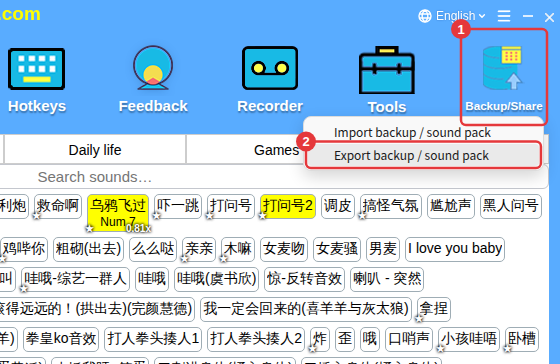
- Click Backup/Share on the toolbar → Export backup / sound pack.
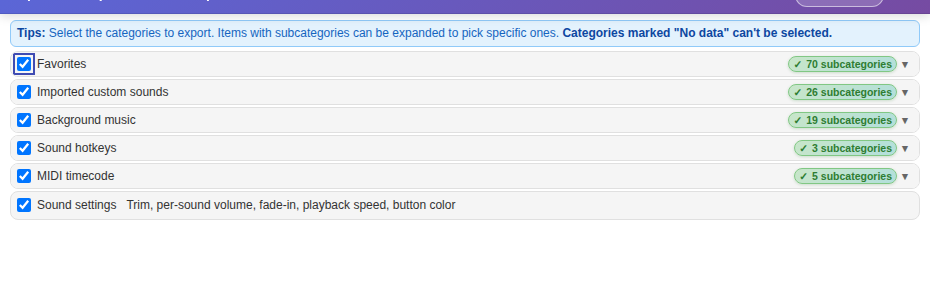
- Tick what to export: Favorites, Imported custom sounds, Background music, Sound hotkeys, MIDI timecode and Sound settings. Items with subcategories can be expanded to pick specific ones; items marked No data can’t be selected.
- Click Export, choose the export type, then choose where to save it.
Two export types
- Local sound pack (more reliable, recommended): all the sound files are packed in. The file is larger, but it contains everything and works on a new PC or offline.
- Cloud sound pack: a small file that’s easy to share. Sounds are read from the cloud when used, so it needs internet and may fail if the cloud copy is no longer available.
Checked before exportingThe app tells you how many non-built-in sounds there are, how many of their files can’t be found on this PC, and roughly how big the pack will be — and warns you if there isn’t enough disk space.
Import a sound pack
- Click Backup/Share → Import backup / sound pack and choose the sound pack file (or drag the file into the app window — one at a time).
- Tick the categories to import.
- Tick Overwrite all settings if needed: when ticked, the pack completely replaces your current settings; when not ticked, it’s added — imported categories go after your existing ones with an import prefix in their names.
- Click Import.
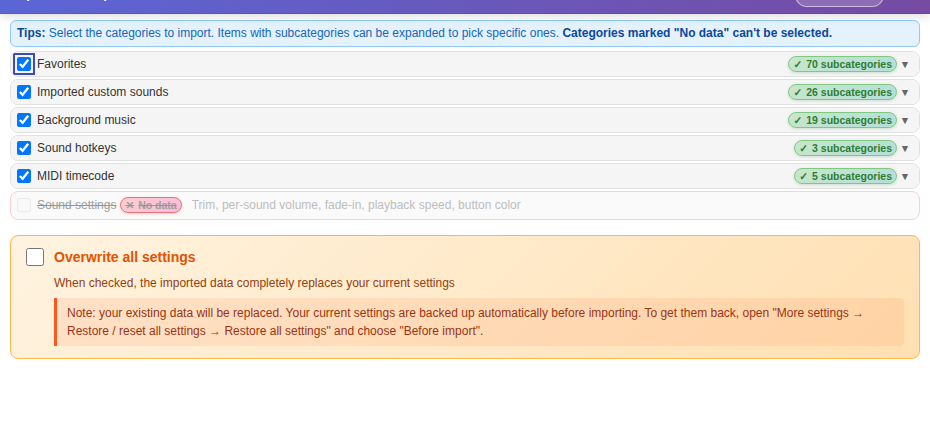
A backup is made automatically firstNot happy with the result? Go to ≡ → Restore / reset all settings → Restore all settings and pick the restore point from before the import. See Restore/reset all settings.
