
Hotkeys can work in two ways. Switch between them under ≡ in the top-right corner → Hotkey mode.
Listen mode and Register mode
- Listen mode (keeps the key’s normal action): the default. Pressing a hotkey plays the sound and the key still does what it normally does (for example, pressing 1 in a chat box plays the sound and also types 1).
- Register mode (replaces the key’s normal action): 小红花音效助手 takes the key for itself — it only plays the sound, and the key’s normal action and other apps no longer respond to it.
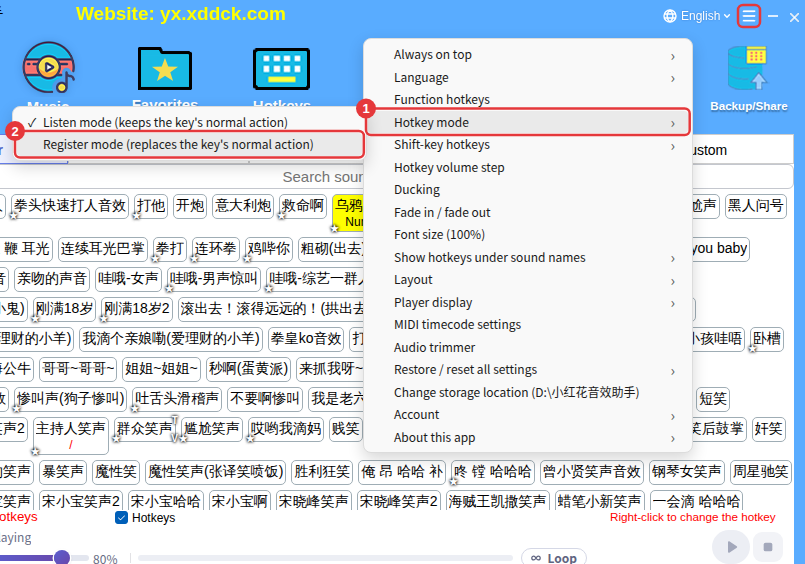
Which should I use?Usually the default Listen mode. If a hotkey keeps triggering something else as well, or doesn’t respond in certain games, try Register mode — but in Register mode other apps such as OBS no longer receive that key.
Shift-key hotkeys
≡ → Shift-key hotkeys decides whether the Shift key can be part of a hotkey. It’s on by default.
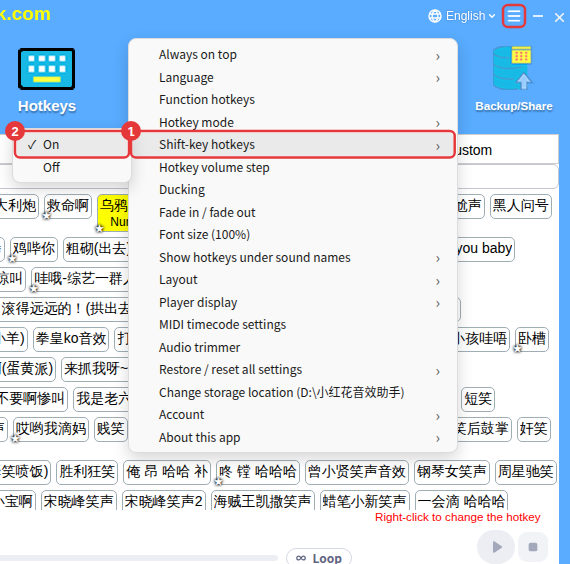
If a hotkey already uses Shift, turning it off shows a message saying the Shift key is in use by that sound. Change or delete that sound’s hotkey first, then turn it off. See Can’t turn off Shift-key hotkeys.
