You don’t need to update manually: the app checks every time it opens and, when there’s a new version, downloads it on the start-up screen. Just stay online and let it finish.
What you’ll see while updating
- The start-up screen counts through four starting steps; when there’s a new version it pauses a little longer on step 3 to fetch the update information.
- Once the download starts, it shows the update percentage.
Slow or failed updates
- Click “Slow update? Download manually” at the bottom-right of the start-up screen to open the website, then download and run the latest version.
- If the automatic update fails, the app says so and opens the download page — download it from there.
- If the download is blocked, or the app won’t open after updating, see Download failed and The app suddenly won’t run.
Will updating lose my settings?
No. Hotkeys, favorites, categories and other settings are saved with your account on the server, and sound files you imported are in the app’s storage folder. Updating only replaces the app itself and doesn’t delete this data.
Check your version
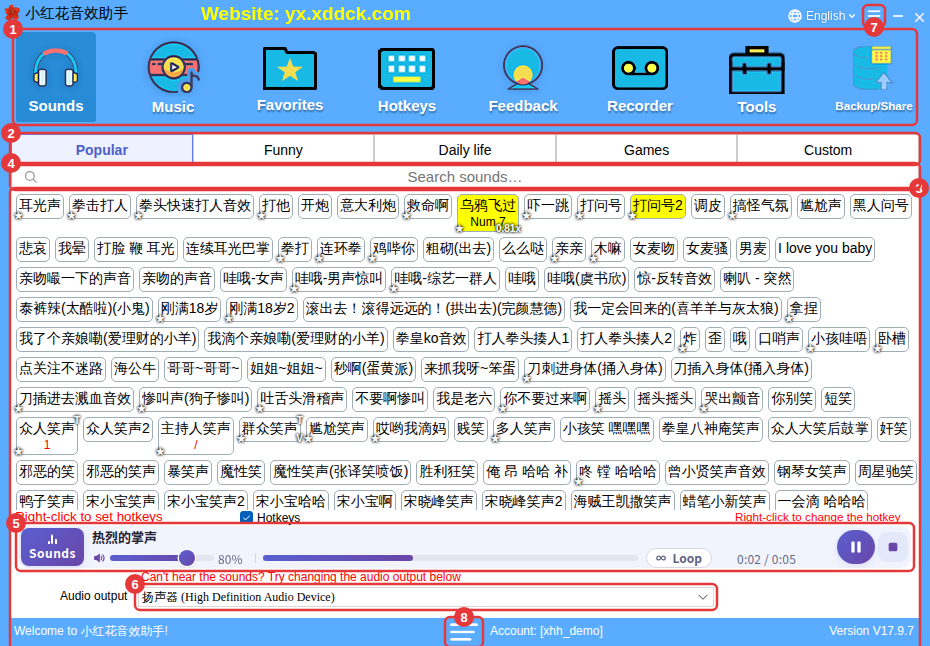
The version number is shown at the bottom-right of the main window.