
Wait a moment first — the app retries automatically. If it’s still loading after 3 minutes, run one-click diagnosis when prompted and send us the report so we can find the cause.
Wait a moment first
The first time you open it, or on a slow connection, loading takes a while and the app retries automatically.
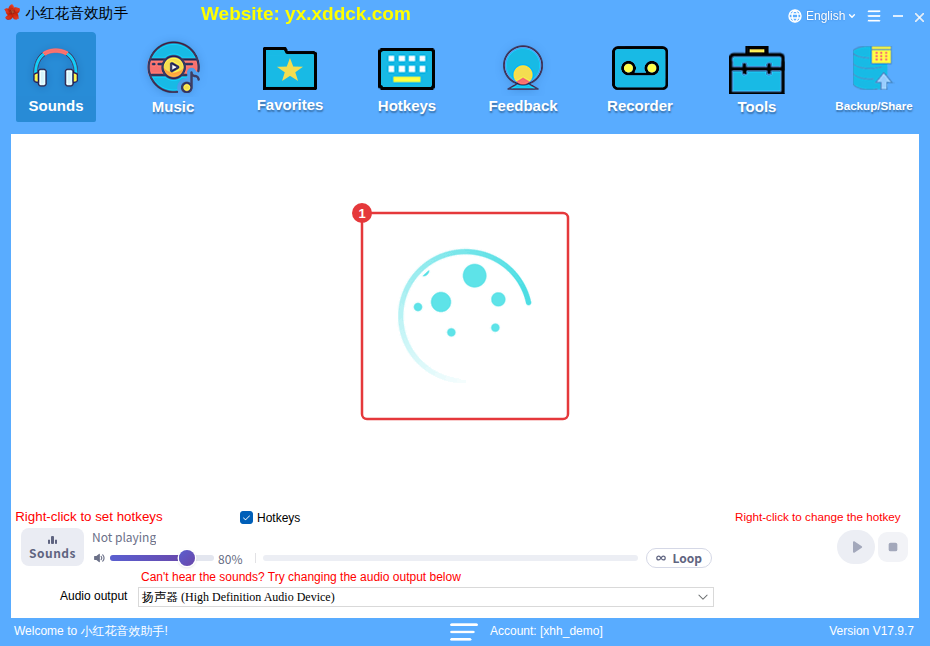
Still loading after 3 minutes
The app shows a message that initialization is taking too long (over 3 minutes) and that it will keep retrying. Common causes:
- The network is down or blocked (check your connection and turn off any proxy or accelerator, then try again);
- The PC’s clock is wrong (set the correct time);
- Antivirus software is blocking it or scanning it for too long at startup: add the app’s folder to your security software’s trusted list (see the tip below, or The app suddenly won’t run);
- Sound card or graphics drivers have a problem (update them from your PC or graphics card maker’s website);
- You’re using it over Remote Desktop: pages easily go grey or keep loading there — run the app directly on the PC itself;
- The start-up screen is stuck on step 3: it may be fetching an update — stay online and wait. See How to update.
How to trust the app in your security softwareFor the built-in Windows security: open Windows Security → Virus & threat protection → Manage settings → Exclusions, and add the app’s folder. With Huorong or other security apps, add it to their trusted list or whitelist.
Run one-click diagnosis
- In the message, choose to run one-click diagnosis. It takes about 2–3 minutes and runs in the background while the app keeps running — don’t close the app.
- When it’s finished, a message says diagnosis is complete and the report’s folder opens (it’s on your desktop).
- Zip that folder and send it to our support team via .
TipDiagnosis only collects information and creates a report on your desktop; it doesn’t change any of your PC’s settings.
