
Left-click a sound button and it starts playing. All playback controls are in the player at the bottom of the window.
Play and pause
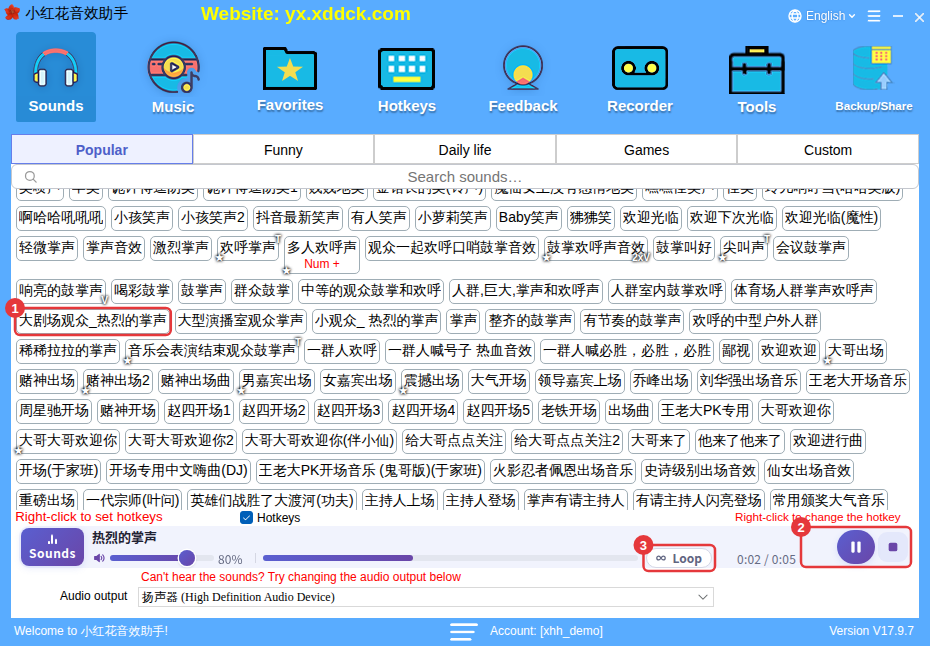
- Left-click any sound button (①) to play it.
- The Sounds row of the player shows what’s playing, with its progress and time; use the buttons on the right (②) to pause/resume or stop.
- Turn on Loop (③) and the sound starts again from the beginning each time it ends, until you stop it.
When background music is playing too
While background music is playing, the player adds a Music row. Sounds and music each have their own buttons and don’t affect each other:

- Pause all (③) pauses sounds and music at once; click again to resume both.
- The volume slider on the left of each row (⑤) sets the sound or music volume separately — drag it or scroll the mouse wheel over it.
- Right-click a button in the player, such as pause or stop, to give that button a hotkey directly.
Player display
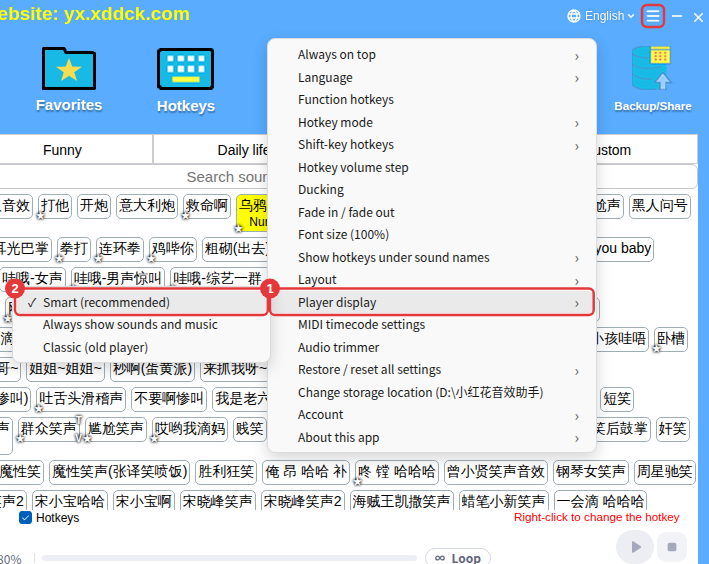
More settings (≡ in the top-right corner) → Player display has three options:
- Smart (recommended): the default — the Music row appears only when needed.
- Always show sounds and music: both rows are always shown.
- Classic (old console): switches back to the old console at the bottom.
TipOne sound and one background music track play at a time. If a sound has no sound, see No sound or sound is quiet.
