
Spend ten minutes before you go live grouping your go-to sounds by scene and giving them comfortable hotkeys. On stream you won’t have to look away from the camera — one press and it plays.
1. Create favorite categories by scene
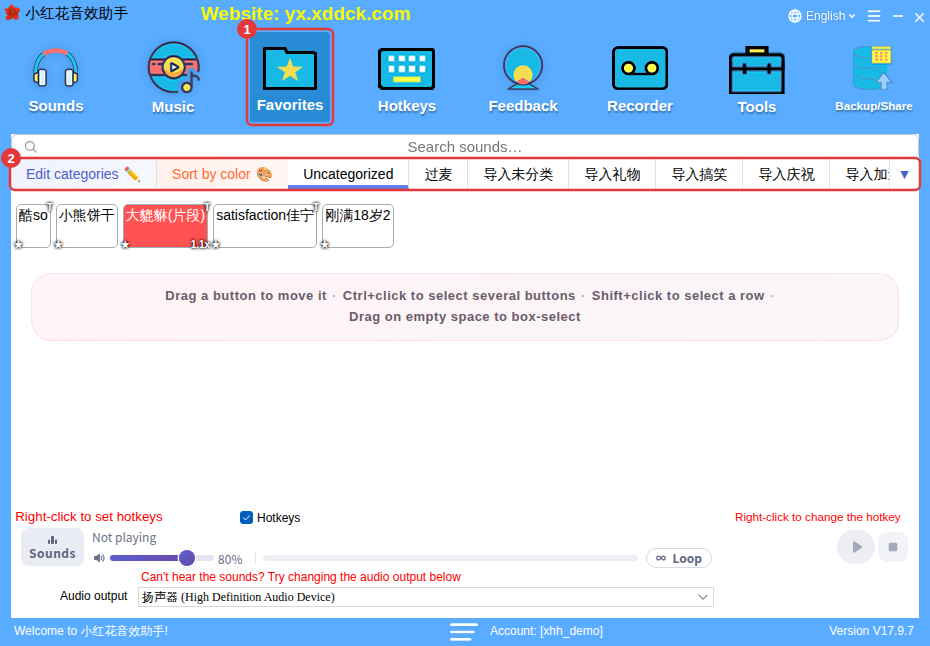
In Favorites, create a few favorite categories that follow your stream — for example Intro, Interaction, Gift thanks, PK, Fun and Ending — then right-click the sounds you need and choose Add to Favorites. On stream you only need the Favorites page instead of digging through thousands of sounds. See Favorite sounds.
2. Lay out hotkeys by scene
- Use a group of neighboring keys for each scene — for example Ctrl+1 to Ctrl+4 for the intro and Alt+1 to Alt+4 for gift thanks. They’re easy to remember and hard to mix up.
- Put your one or two most-used sounds on the mouse side buttons so you can play them without letting go of the mouse.
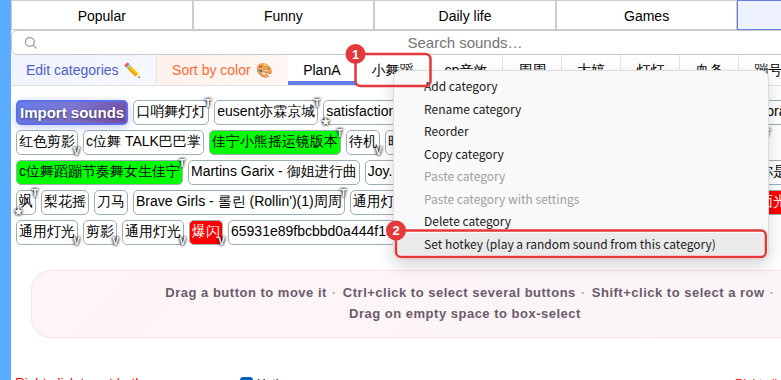
- For things like cheers and laughs that should sound different each time (favorite categories can’t have random-play hotkeys), put them in one subcategory under Custom and give that subcategory Set hotkey (play a random sound from this category). Each press plays a random one.
- When you’re done, open Hotkeys and check the Hotkeys in use keyboard so your keys don’t clash with your streaming software or games. See Hotkey management and keys in use.
3. Set volume and clips in advance
- Turn down sounds that are too loud with Set per-sound volume, and turn up quiet ones (up to 400%). See Set per-sound volume.
- Want only the best few seconds? Use Trim to keep just that part. See Trim a sound.
4. Don’t let background music talk over you
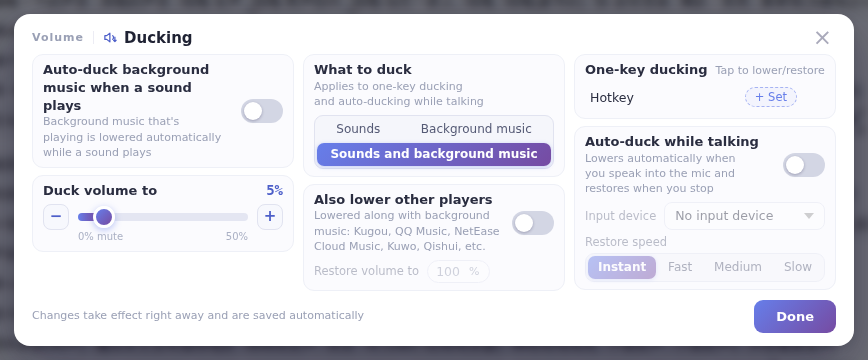
Put your backing music in Background music, then in Ducking turn on ducking for sounds and ducking while you talk. The music steps aside automatically when a sound plays or when you speak. See Ducking.
5. Avoid accidental triggers while typing
If some hotkeys are single letters or digits, untick Hotkeys in the player or the floating window before you type, or give the hotkeys switch a function hotkey so one key turns them on and off. See Always on top, floating window and tray.
6. Final check before going live
- Click a sound and watch the volume meter in your streaming software. If it doesn’t move, see Viewers can’t hear sounds.
- Once everything is set up, export a local sound pack as a backup so you can recover after moving to a new PC or deleting something by mistake. See Backup/share sound packs.
