Buttons too crowded or text too small to read? Adjust the page layout and font size in More settings (≡ in the top-right corner).
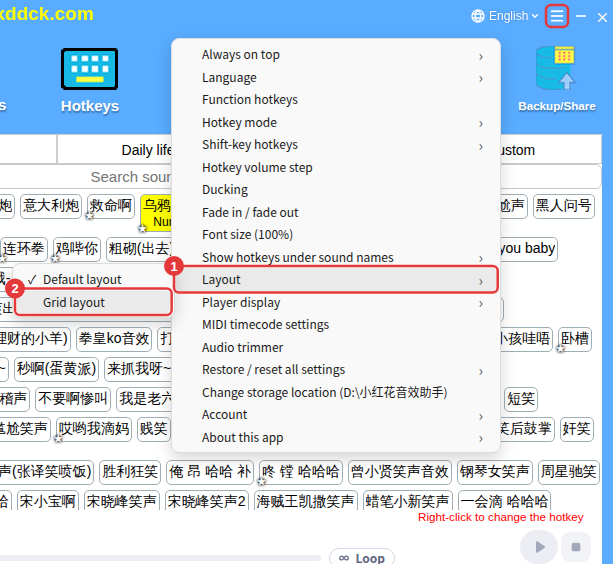
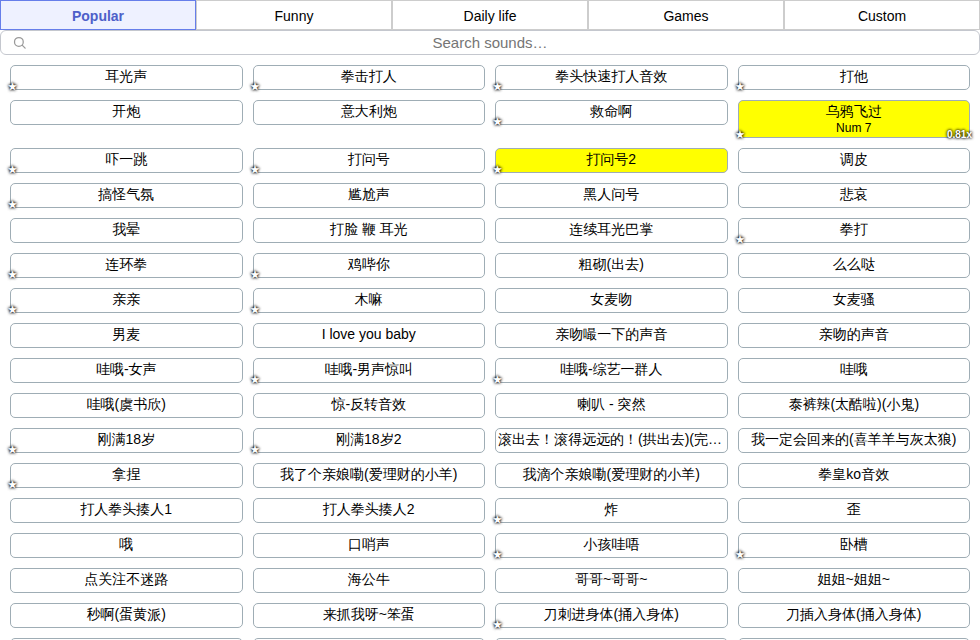
Default layout and grid layout
- Click ≡ in the top-right corner → Layout → Grid layout.
- Enter how many buttons to show per row (up to 10) and confirm — the buttons line up neatly.
- To go back, choose Default layout.
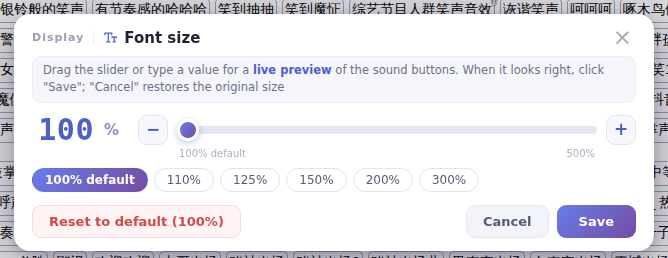
Font size
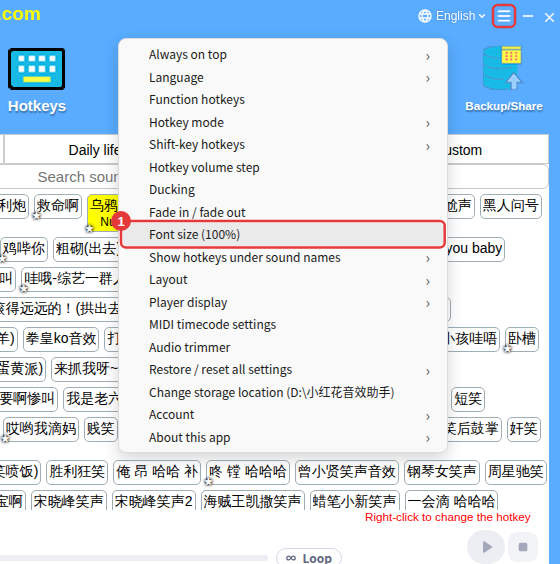
- Click ≡ in the top-right corner → Font size (100%); the number in brackets is the current size.
- Drag the slider, or click a preset such as 110%, 125%, 150%, 200% or 300%, to choose anything from 100% to 500%; Reset to default (100%) goes back to the default size.
- Click Save.
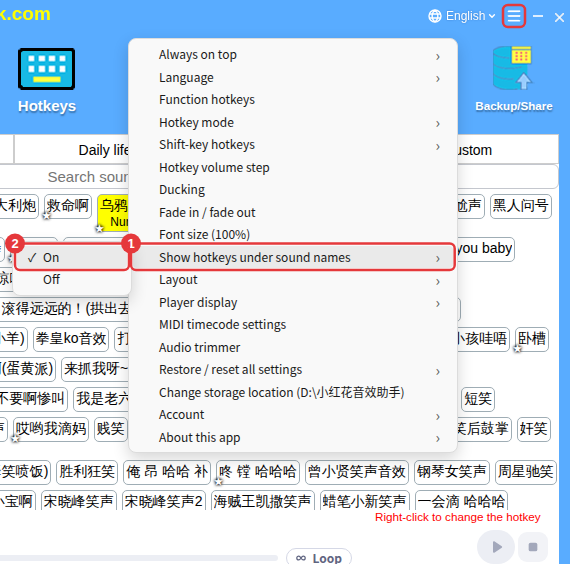
Show hotkeys under sound names
On by default: sounds with a hotkey show the key under their name. If it feels cluttered, choose Off under More settings → Show hotkeys under sound names.