
Besides the thousands of built-in sounds, you can bring in music and sounds from your own PC. They go on the Custom page.
Import sounds
- Click Sounds on the toolbar, then the Custom category tab (①).
- At the top, choose the subcategory to put them in (for example Intro).
- Click the Import sounds button at the start of the subcategory (②) and choose music files in the window that opens. Hold Ctrl to select several at once — several files are processed in parallel.
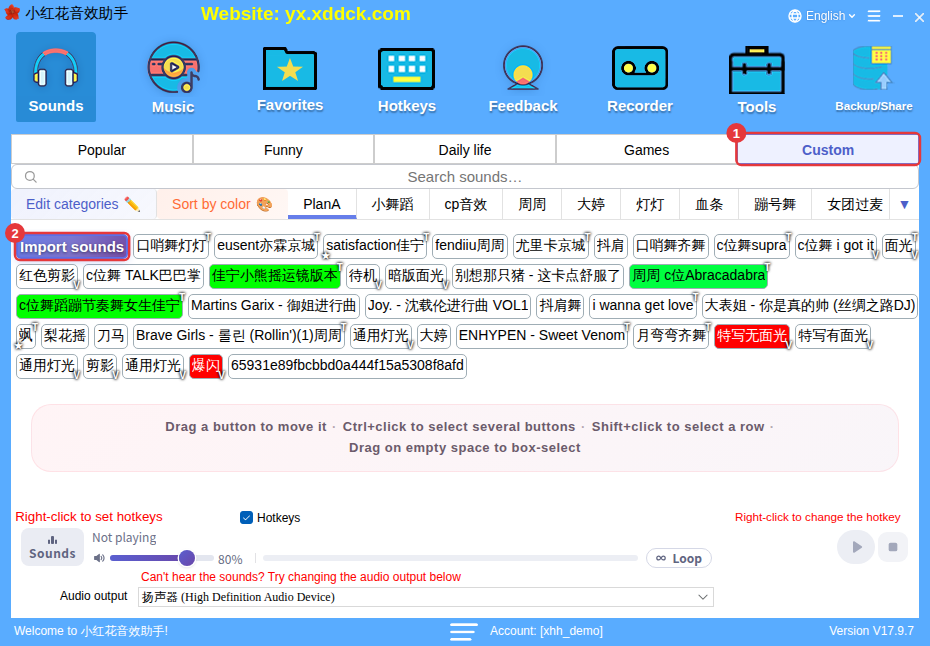
You can also drag music files from a folder on your PC and drop them onto the app window.
Which files work?Common audio formats such as MP3, WAV, FLAC, M4A/AAC, WMA, OGG and OPUS can be imported. If you see “unrecognized music file”, convert it to MP3, OGG, AAC, M4A, WMA or FLAC and try again; a file that’s too large shows a size-limit message. Sound packs exported with Backup/Share (.xhh / .xdd) are imported as a sound pack automatically when you drop them in (one at a time).
Where do songs come from?After downloading songs in a music app, find where the files are saved in its download list, then import them as above or drag the files in. Mind copyright when playing songs publicly on stream.
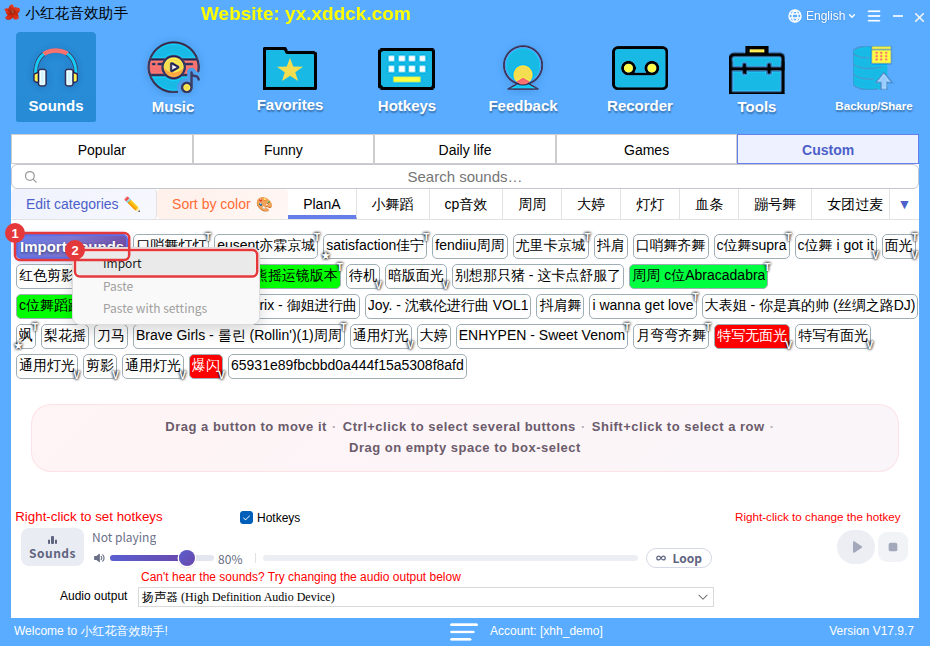
The Import sounds button’s right-click menu
Right-click the Import sounds button to choose Import, or to Paste / Paste with settings sounds you copied elsewhere into this subcategory (how to copy: see Manage categories and organize sounds).
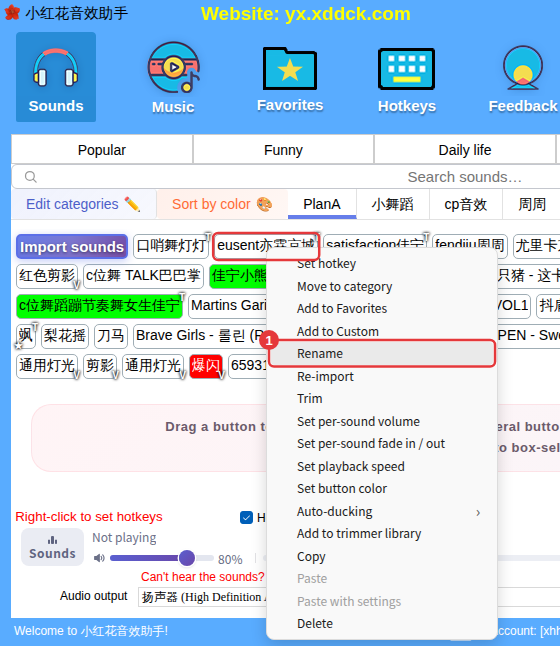
After importing: rename, re-import, delete
Sounds you imported yourself have a few extra right-click items compared with built-in sounds:
- Rename: change the name shown on the button.
- Re-import: pick a new music file for this button (for example if the original file was moved or deleted).
- Delete: remove it from the app (the music file on your PC isn’t deleted). Its favorites and hotkey are removed too.
NoteKeep the original music files on your PC after importing. Before moving to a new PC, export a local sound pack with Backup/Share. See Backup/share sound packs.
