
First time here? Follow the 4 steps below and you’ll be up and running in a few minutes. Works on Windows 7 / 8 / 10 / 11 PCs; Macs and phones aren’t supported yet.
Step 1: Download from the website
- Open the official website yx.xddck.com in a browser on your PC and click Download for PC.
- Pick any of the download links that appear (Fast download 1 is recommended; if one fails, try another).
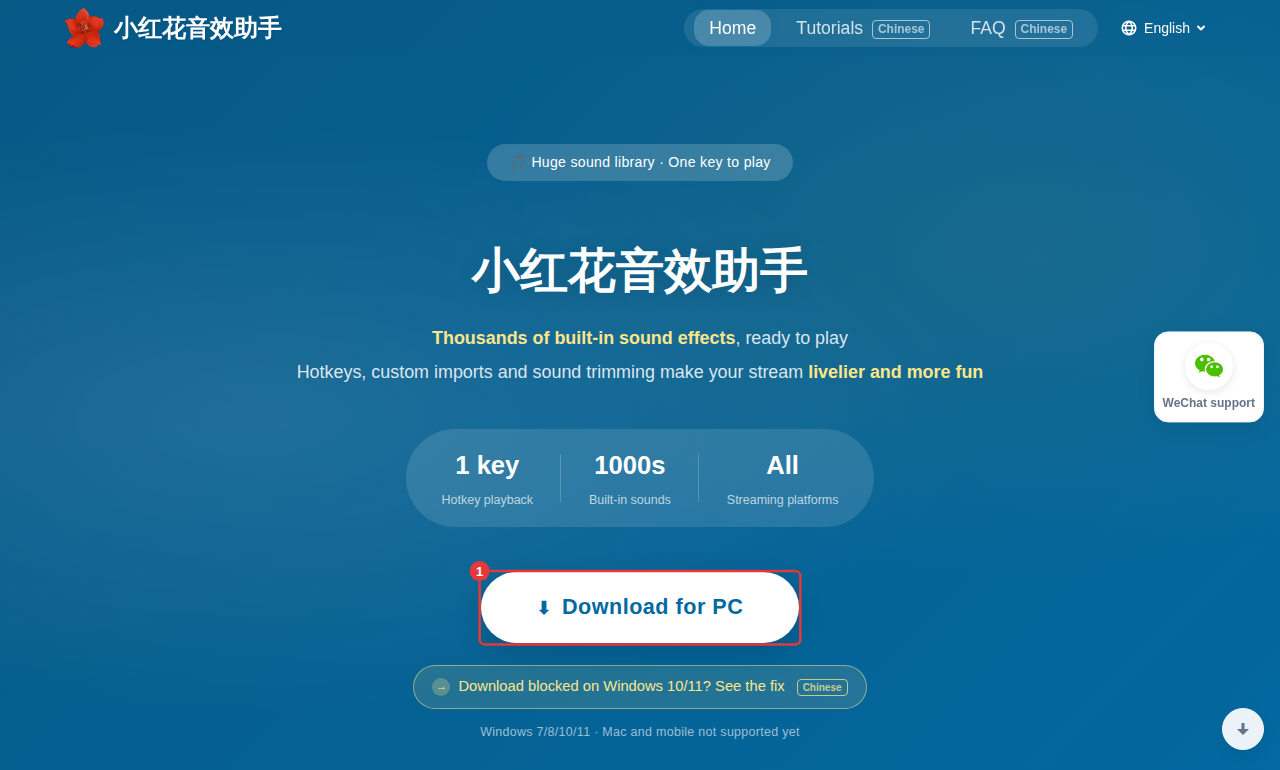
Download blocked or flagged as unsafe?This is a false alarm from the security software built into Windows 10/11 or from the Edge browser. See Download failed.
Step 2: Run the app
When the download finishes, double-click to run it. A start-up screen appears and the app checks for updates automatically, so stay online. If updating is slow, click “Slow update? Download manually” on the start-up screen to get the latest version from the website — see How to update.
Step 3: Create an account
- In the sign-in window, click Sign up now.
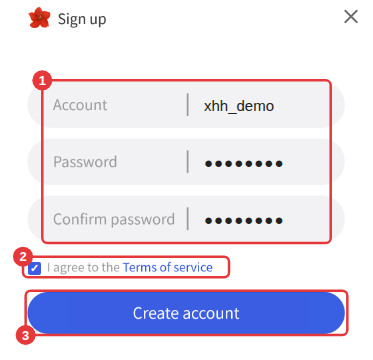
- Fill in Account, Password and Confirm password — anything you’ll remember.
- Tick I agree to the Terms of service and click Create account.

Step 4: Sign in
- Enter the account and password you just created (tick Remember password so you don’t have to type it next time).
- Click Sign in to open the main window.


What’s nextSpend 2 minutes on The main window. We also recommend you link an email address soon: if you forget your password, you can only reset it yourself if an email is linked.
